
The Base Delay Visit alert is triggered when an object starts from its base location but fails to reach a designated point within the specified duration.
This alert helps fleet managers monitor punctuality and route adherence, ensuring timely operations and deliveries.
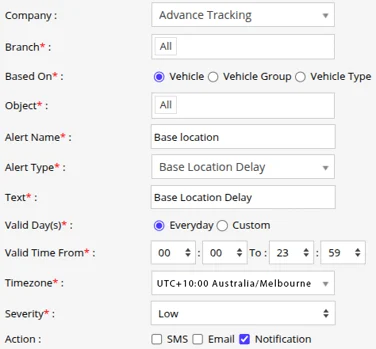
Parameters Considered (Prerequisites)
- Base Location Defined: A base location must be set in the system as the starting point for the object.
Please Note: The Base Location must be configured in Settings > Master > Base Location Configuration
- Destination / Visit Point Defined: The target location or point that the object is expected to reach must be configured.
How to Configure
- Select the correct Company and Branch for whom the alert is to be configured.
- Based On: Choose on what you want to base the alert configuration (Object, Object Group, Object Type).
- Object: Select individual vehicles for whom you want the alert to generate.
- Object Group: Select a group of vehicles for whom you want the alert to generate.
- Object Type: Select vehicle or object type for whom you want the alert to generate.
- Select the Object based on the previous step selection.
- Set an Alert Name for identification of the alert.
- Select the Alert Type as Base Location Delay.
- In the Text field, enter the message that will be displayed when the alert is triggered.
- Select the Valid Days, Everyday or Custom.
- Everyday: This alert will be triggered, everyday in case of a violation in accordance to these parameters set.
- Custom: Mark the checkboxes of the days, when you want this alert to be triggered for. (eg., Sun, Mon and Sat)

- Enter the Valid Time From and To. The alert will be generated inside the time range that you have selected.
- Select the Timezone.
- Select the Severity of the alert (Low, Medium, or High).
- Mark the checkboxes of the medium via which you want the Action or Notification to be sent. (eg., SMS, Email or Notification)
- SMS: To receive an alert by SMS, enable the checkbox, enter the phone numbers.
- Email: To receive an alert by Email, enable the checkbox, enter the recipients of the email.
- Notification: To receive an alert on the system Push Notification, enable checkbox.
- From User, select the user that will receive the notification.
- From Notification Sound. Select the sound from the drop-down that will be played for this notification.
- Click Save to save the alert configuration.
Please Note: To Receive the alert on SMS & Email, the api should be configured either on Admin, Reseller or Company.
If an object leaves the warehouse at 9:00 AM but fails to reach the designated delivery point by 11:00 AM, the Base Delay Visit alert is triggered.
Configured recipients are notified via SMS, Email, or App Notification, allowing the fleet manager to follow up and ensure timely delivery.