
Users have the option to delete object records either individually or in bulk. To proceed with bulk deletion of object records, please follow the procedure outlined below.
Please Note: Deleting object records will also delete all the data related to the object, including reports and charts.
To Get Started
- Log in to your account.
- Go to Settings > General > Object.
Upon clicking on the object, users will be directed to the Object Overview page, where they can easily view and manage all object records.
- Click on the Bulk Delete button.

- The bulk remove object window will open.
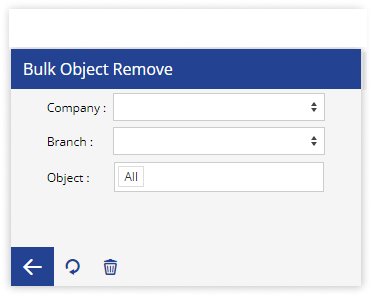
- Select the Reseller, Company, and Branch from the dropdown menus under which you want to remove the object records.
- Select the Objects from the dropdown menu that you want to delete.
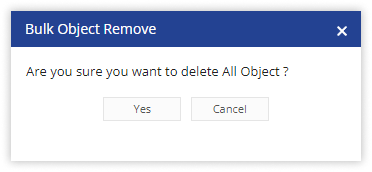
- To proceed, please click on the Delete button. A confirmation popup window will then appear to verify your action.
-
- To confirm your decision, click on Yes to proceed with the deletion of the object, or select Cancel if you wish to abort the action.
- Your records will now be deleted permanently by clicking on the Yes button.
- The bulk remove object window will open.