
The Authentication Tab is integrated into the platform to provide an extra layer of security through two-step verification (2FA). This feature is crucial for safeguarding user accounts and sensitive actions like login by requiring OTP (One-Time Password) verification.
- Log in to your Reseller account.
- Go to Settings > General > Reseller.
- Double-click on the account.
- Navigate to the Reseller Subuser tab.

- Click on Add New (to create a new account) or Edit (to edit the existing account), and the Reseller Subuser window will open.
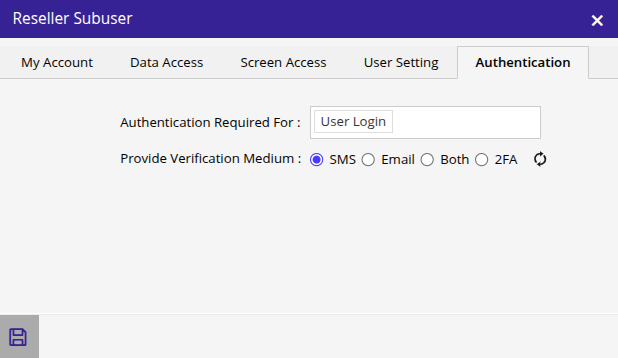
- Navigate to the Authentication tab.
-
- Select the Authentication Required For from the predefined list.
- Provide Verification Medium: Select from the mentioned options by which the OTP will be received for verification.
Two-step authentication (2FA) for logging into the platform is achieved through OTPs sent via SMS or email, or by using Authenticator apps like Google Authenticator.
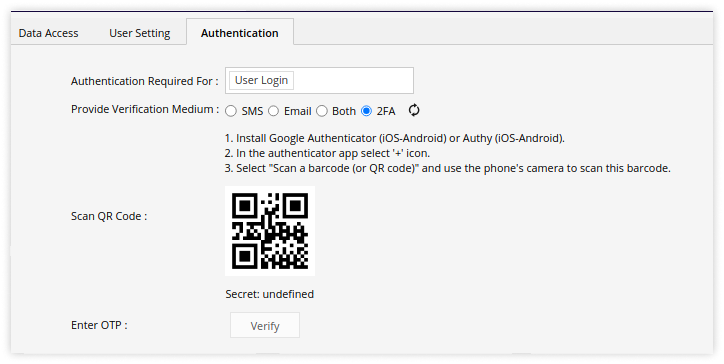
- Click on Verify after completing the process mentioned in the above image.
- Click on Save 💾 icon.