
Administrators, Resellers, or Companies have the ability to customize access to specific features for company subusers, ensuring that their permissions align with their designated roles and responsibilities.
Watch : How to Configure Data Access for Company Subuser.

To Get Started
- Log in to your account.
- Go to Settings > General > Company Subuser.
- Click on the ➕ icon to Add New user or double-click on the existing record to Edit as per your requirement.
To Provide Data Access
Navigate to the Data Access tab.
-
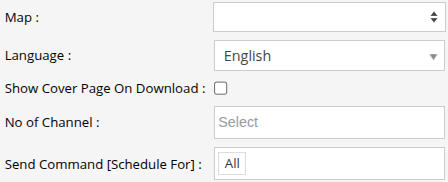
- Choose the default Map for the subuser account. The maps that are accessible to the parent entity will be inherited and available for selection in the company subuser account.
- Select the preferred Language to show analytics to company subusers.
- If you want to have the cover page (Title Page) when you download the reports, then select the checkbox to enable Show Cover Page on Download.
- Choose the No of Channel to activate video telematics features such as live streaming, playback, etc., for the video devices associated with the company subuser.
- From Send Command [Schedule For] you can select what scheduling right you want to give to the company subuser for the send command screen.
-
- Click on the Save 💾 icon.