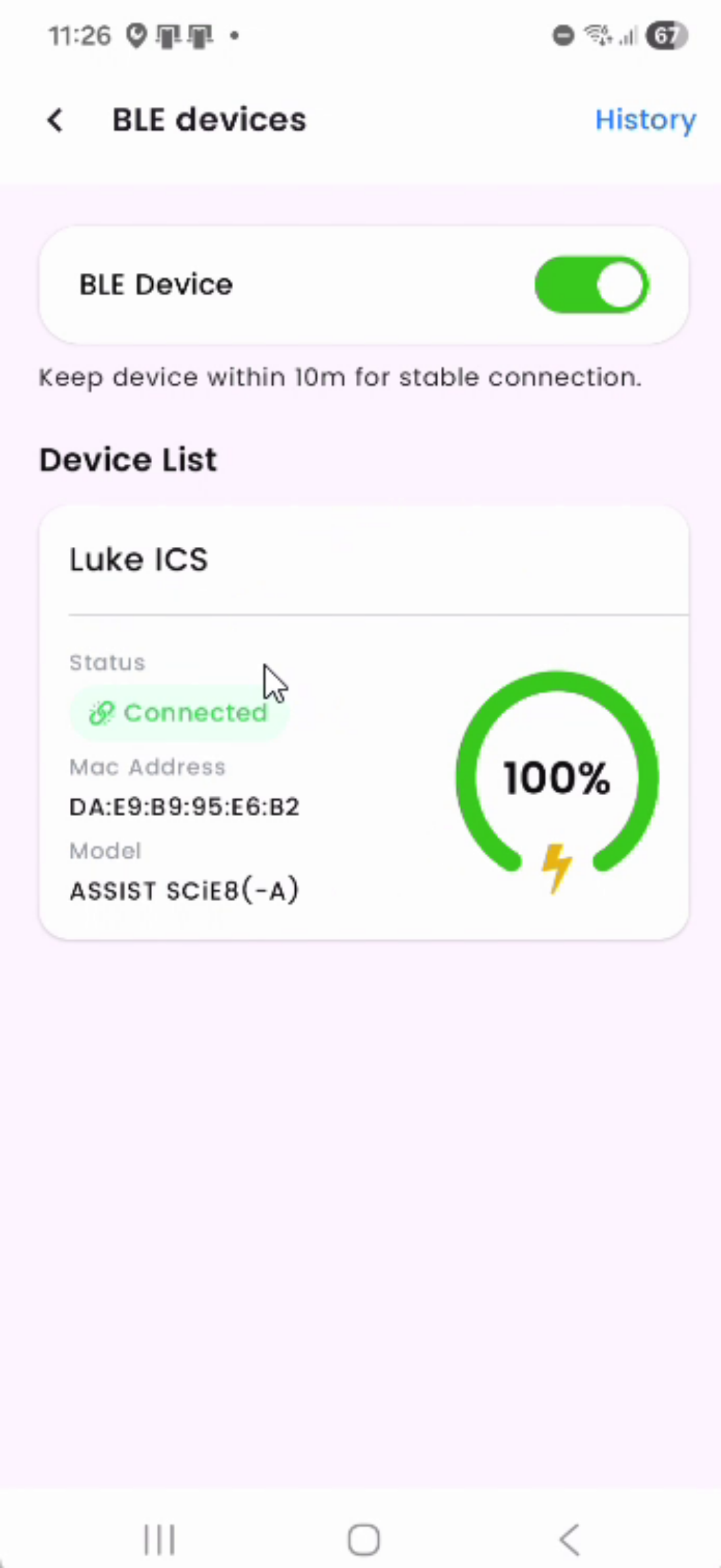
Please watch the video to learn how to how to pair BLE Button to ASSIST Lone Worker app.
- Introduction To BLE Pairing
Today we are going to learn how to pair your BLE button to your Assist Lone Worker app.
- Open App After Assignment
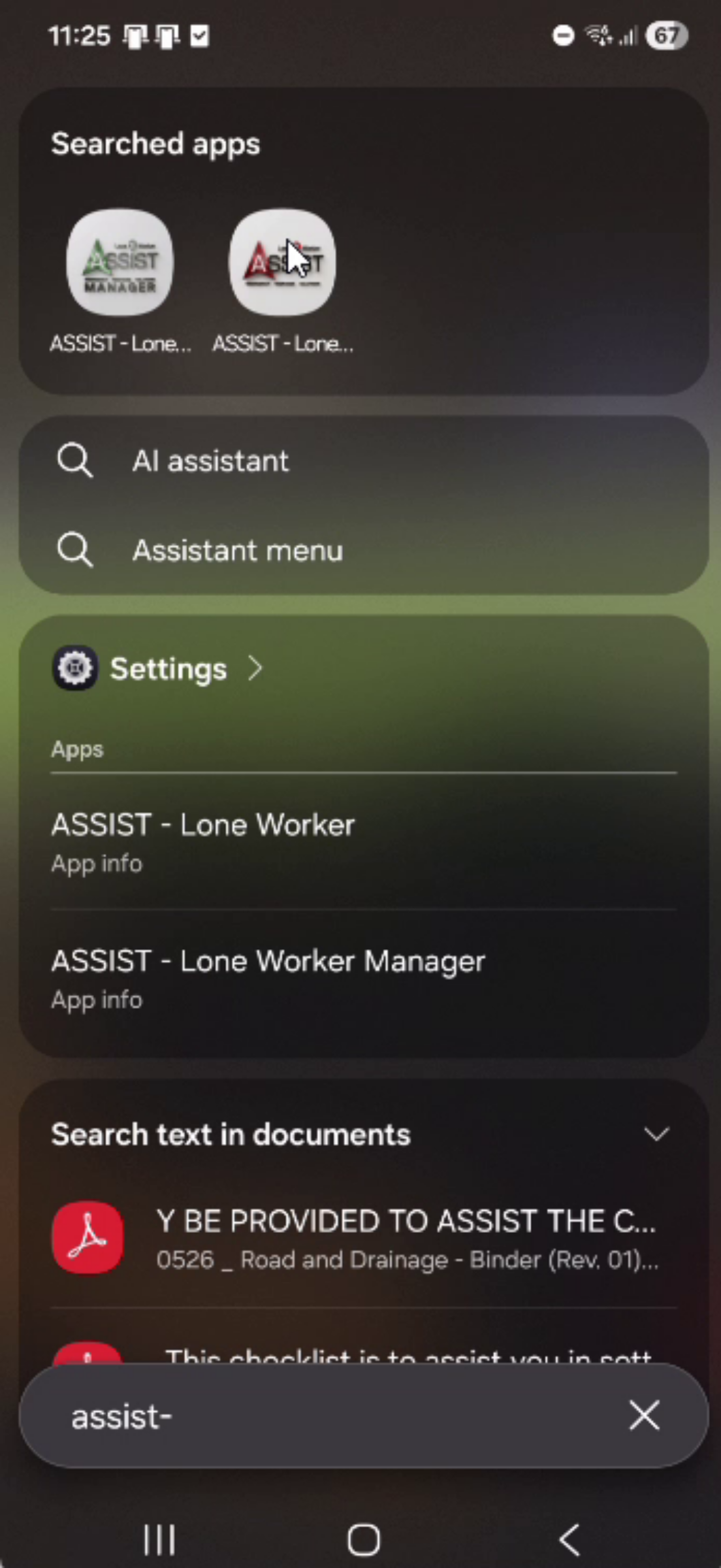
Once you have been assigned a BLE button, open your app
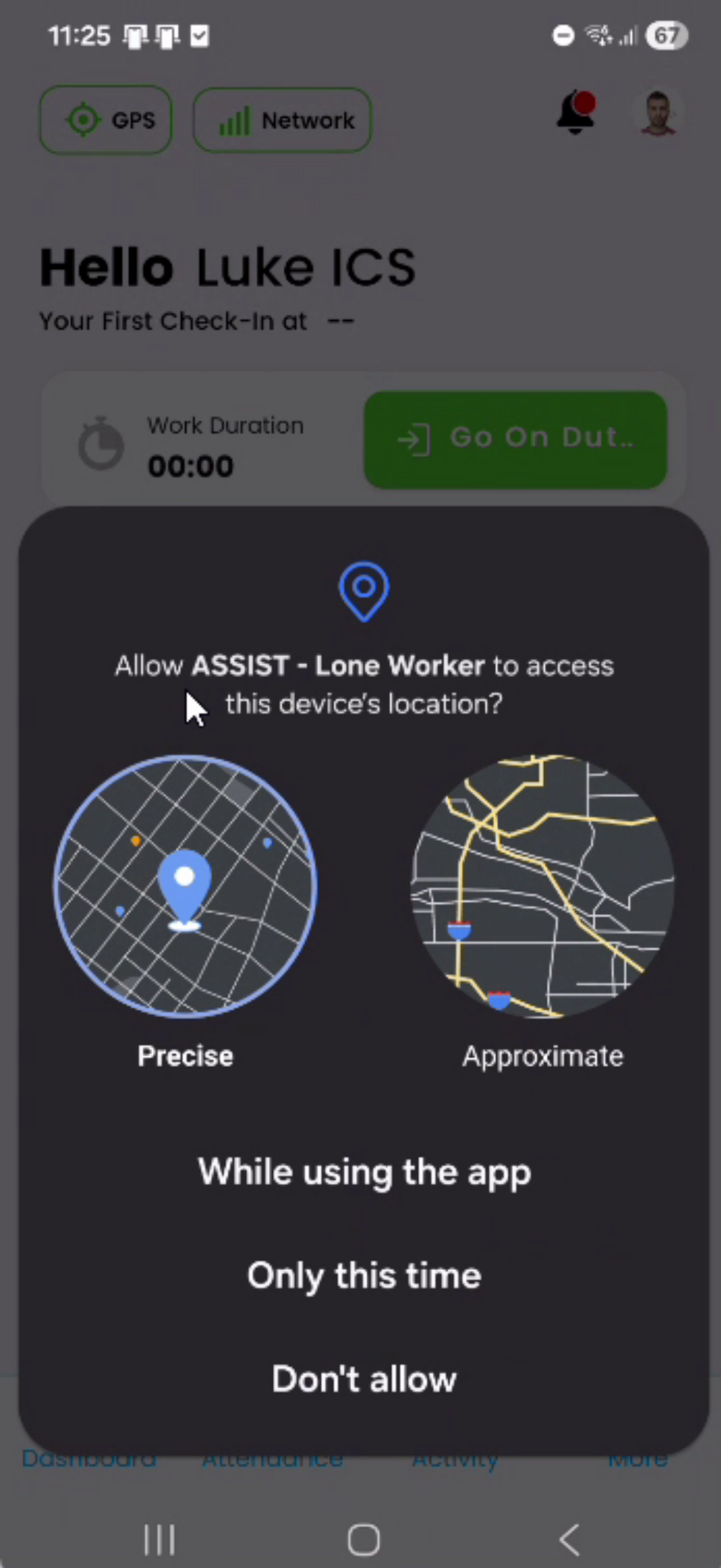
- Grant Location Access
The app will ask to access this device location. From the options below select “While using the app”.
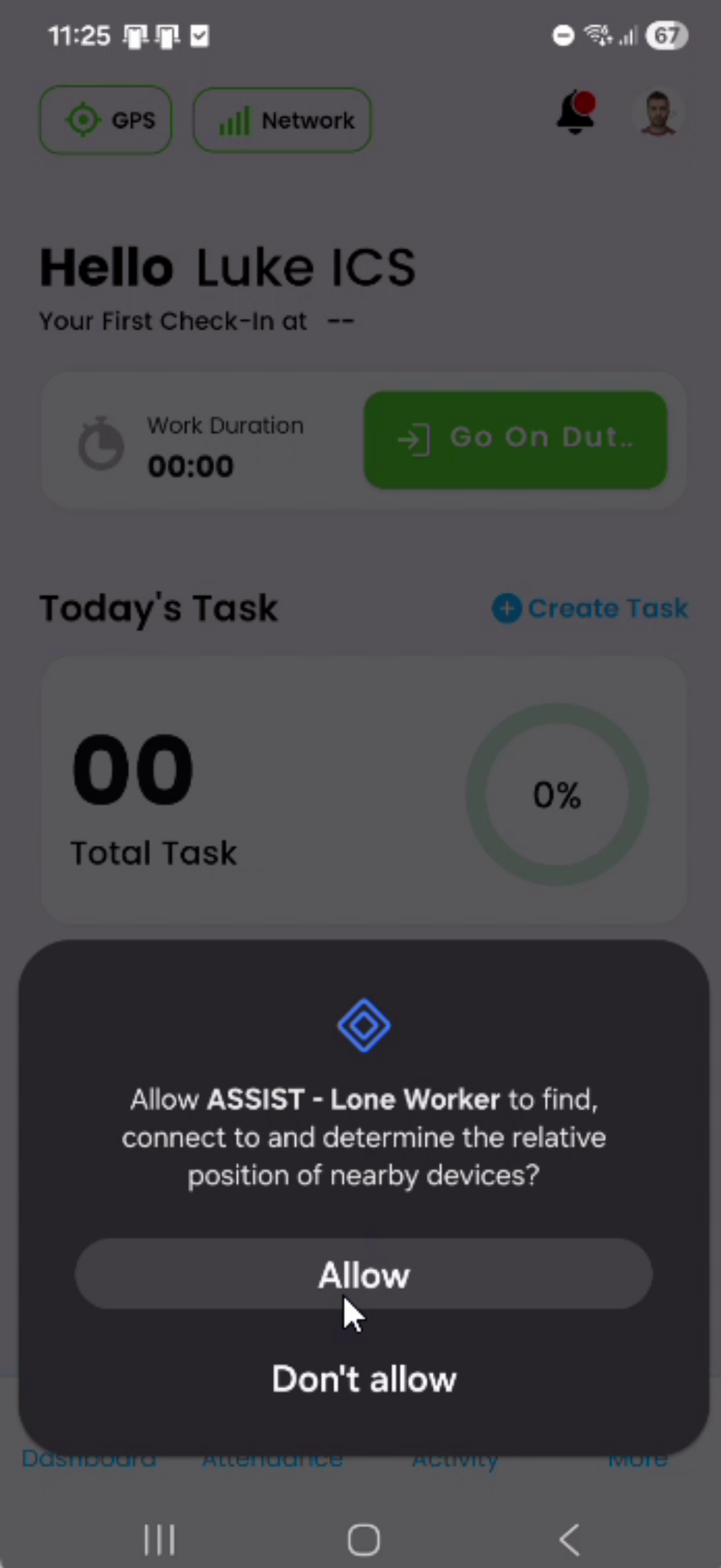
- Allow Device Positioning
When asked to find, connect to and determine the relative position of nearby devices, press “Allow”.
- Enable Background Permissions
When asked to allow permissions, select “Open settings”.
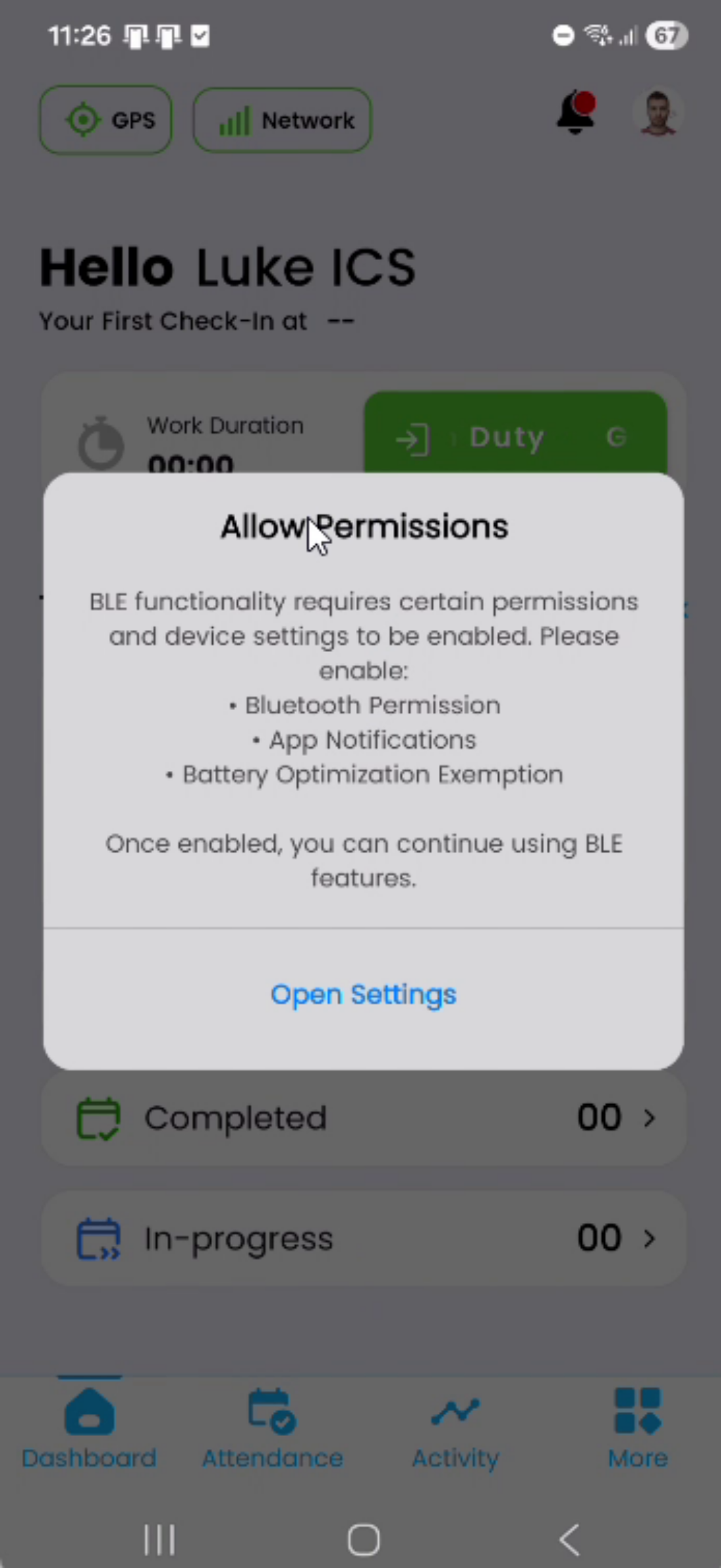
6. Overview
Assist Lone Worker will be able to run in the background, and its battery usage won’t be restricted. Select “Allow”.
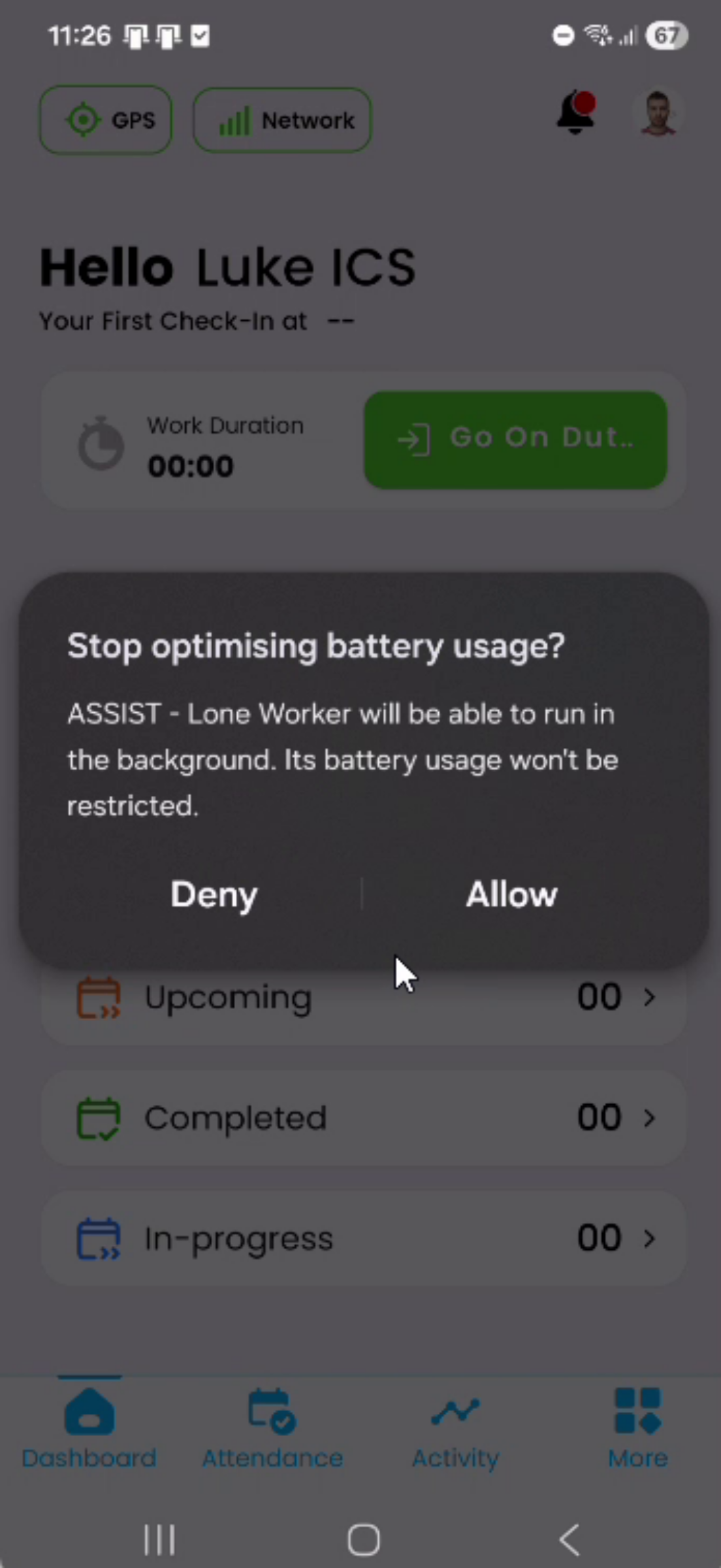
- Connect To BLE Devices
Now, select “MORE” in the bottom right-hand corner.

- Overview
Select BLE devices and ensure Bluetooth is turned on and it should automatically connect.

- Manual BLE Button Connection
If it doesn’t automatically connect, give your BLE button a short press and it will flash green. It will then connect.