
Please watch the video to learn how to assign a BLE Device to an employee.
- Introduction To BLE Assignment
We are going to learn how to assign a BLE button to an employee.
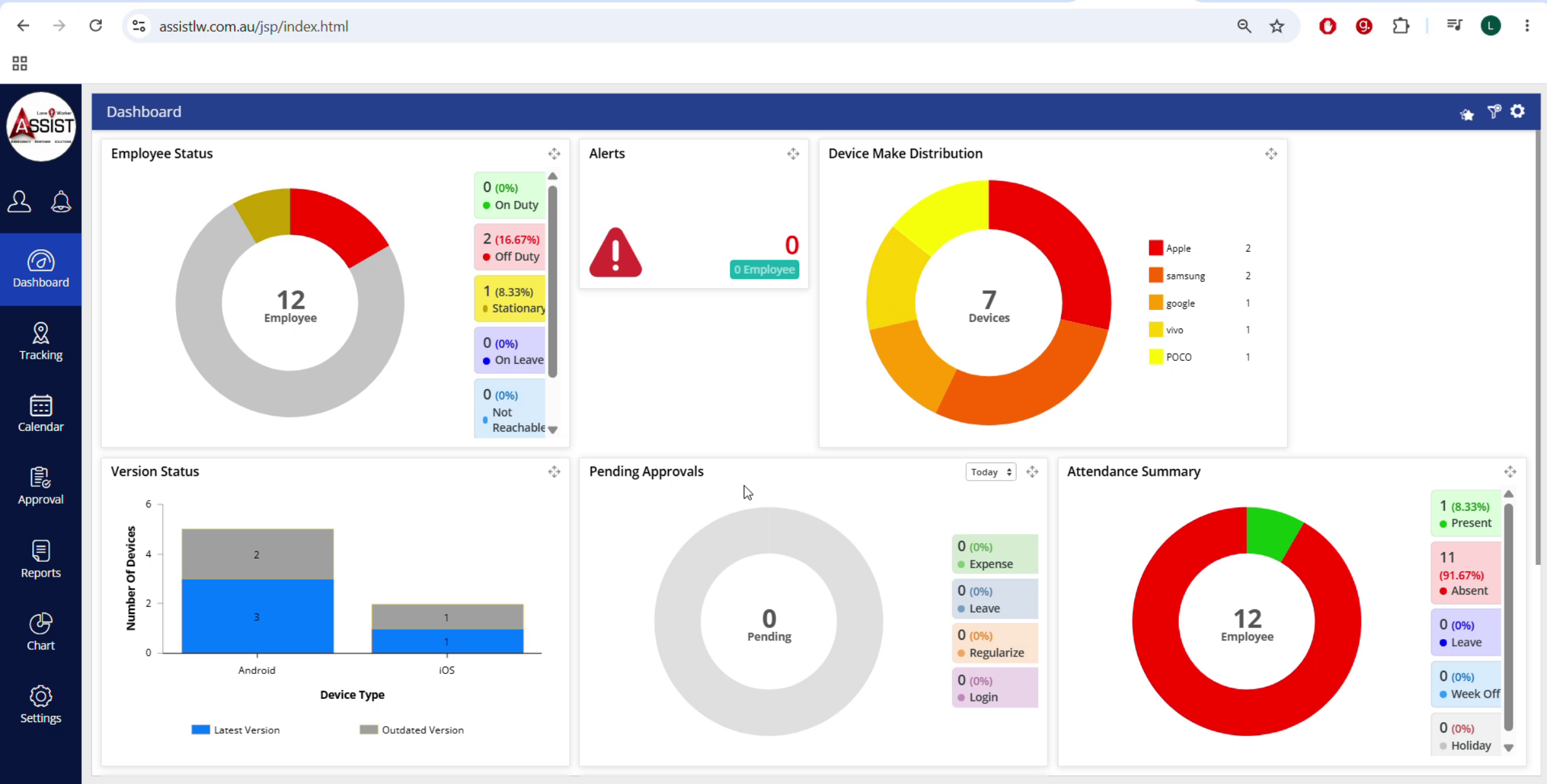
- Navigate To BLE Devices
Firstly, on the left-hand side panel go to “Settings” > “Device Integration” > “BLE Devices”.
- Select Company Branch Department
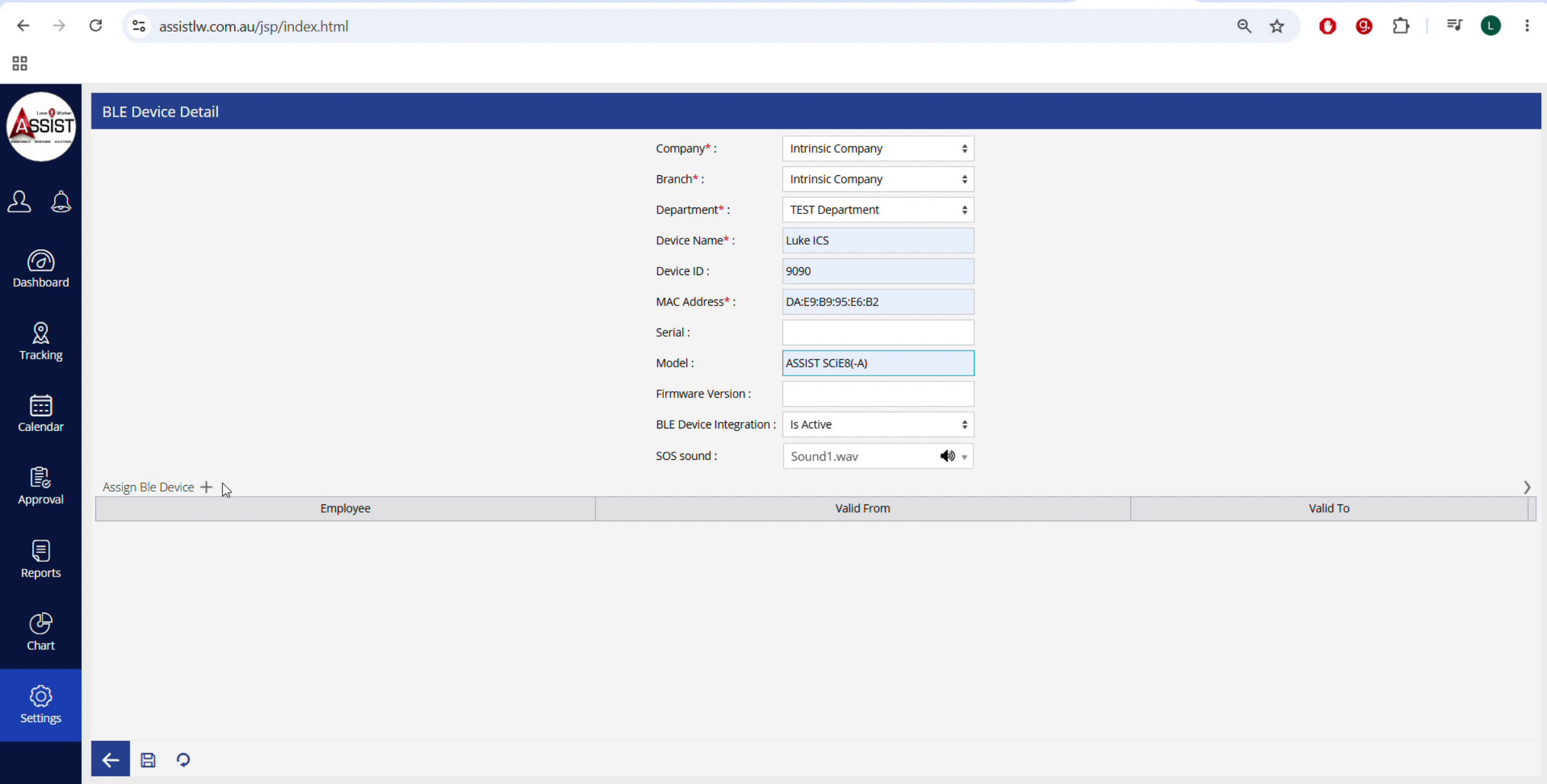
In the bottom left-hand corner, press the plus button. Select the company, the branch, and the department that the employee is located.

- Enter Device Name
Enter the device name.
- Enter Device ID
Enter the device ID. This number will be given to you by Intrinsic Choice Solutions.
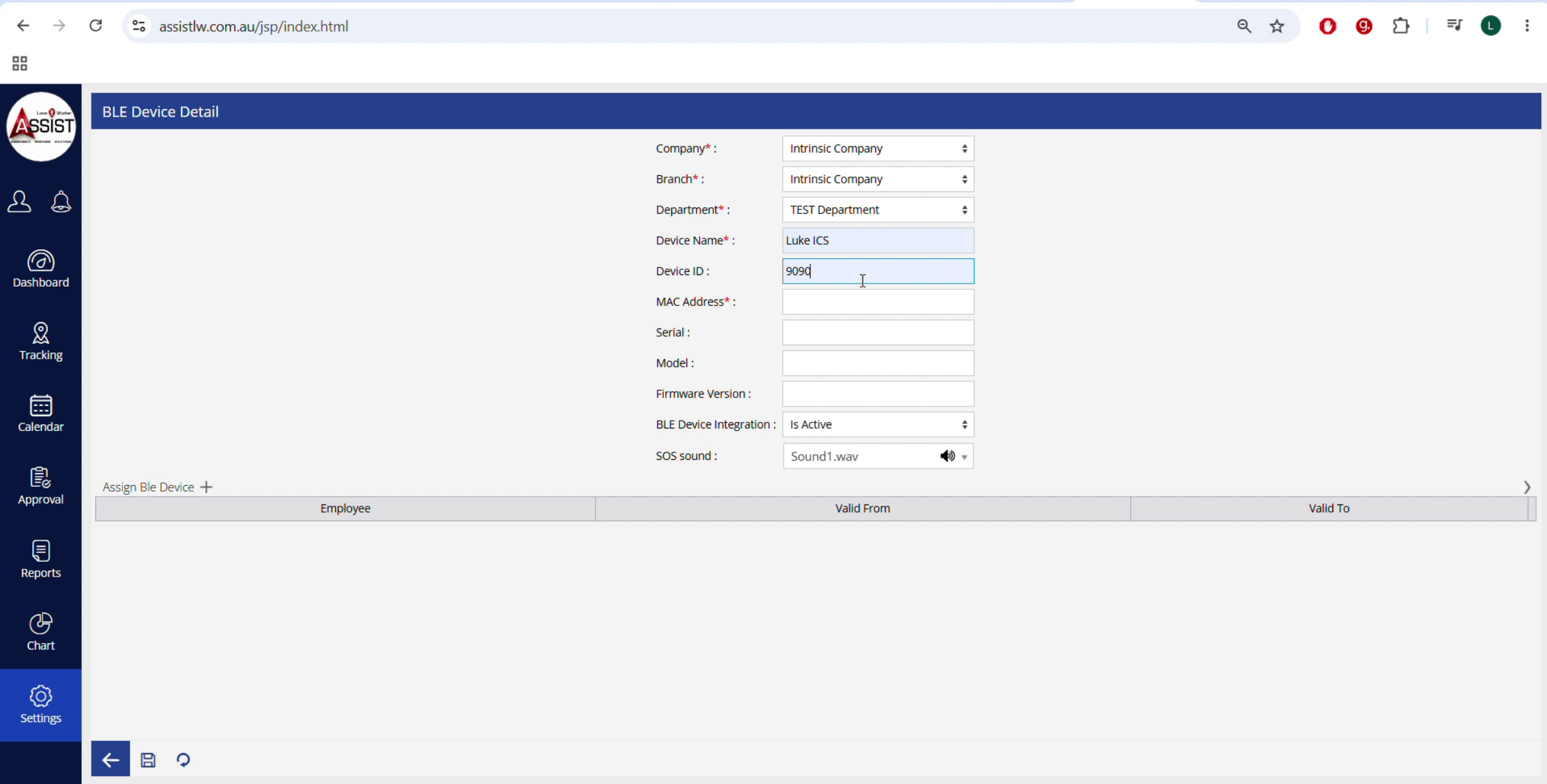
- Input MAC Address
Then enter the MAC address.
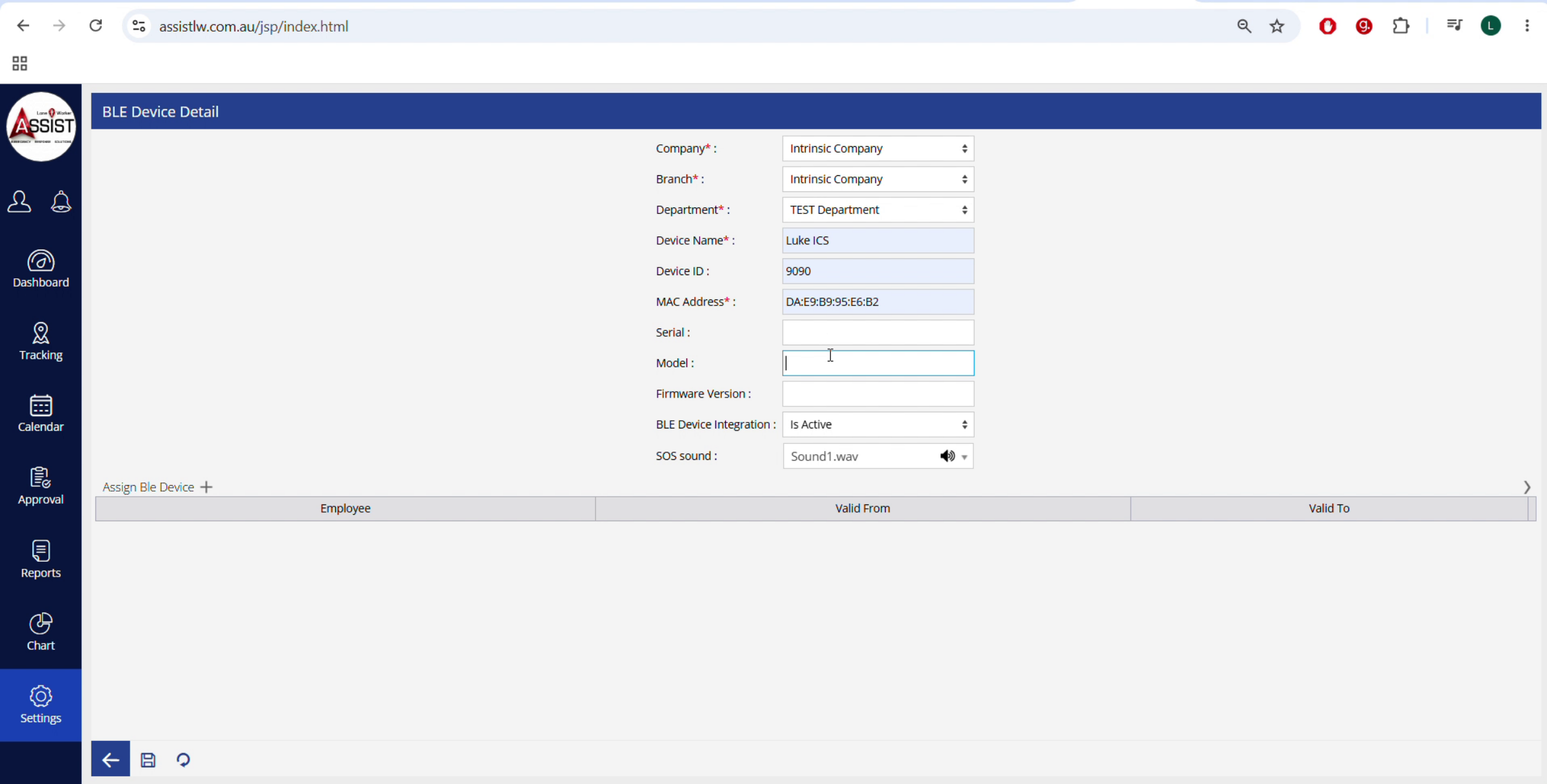
- MAC Address example
The MAC address is located on the back of the BLE device ensure that you enter the colons.
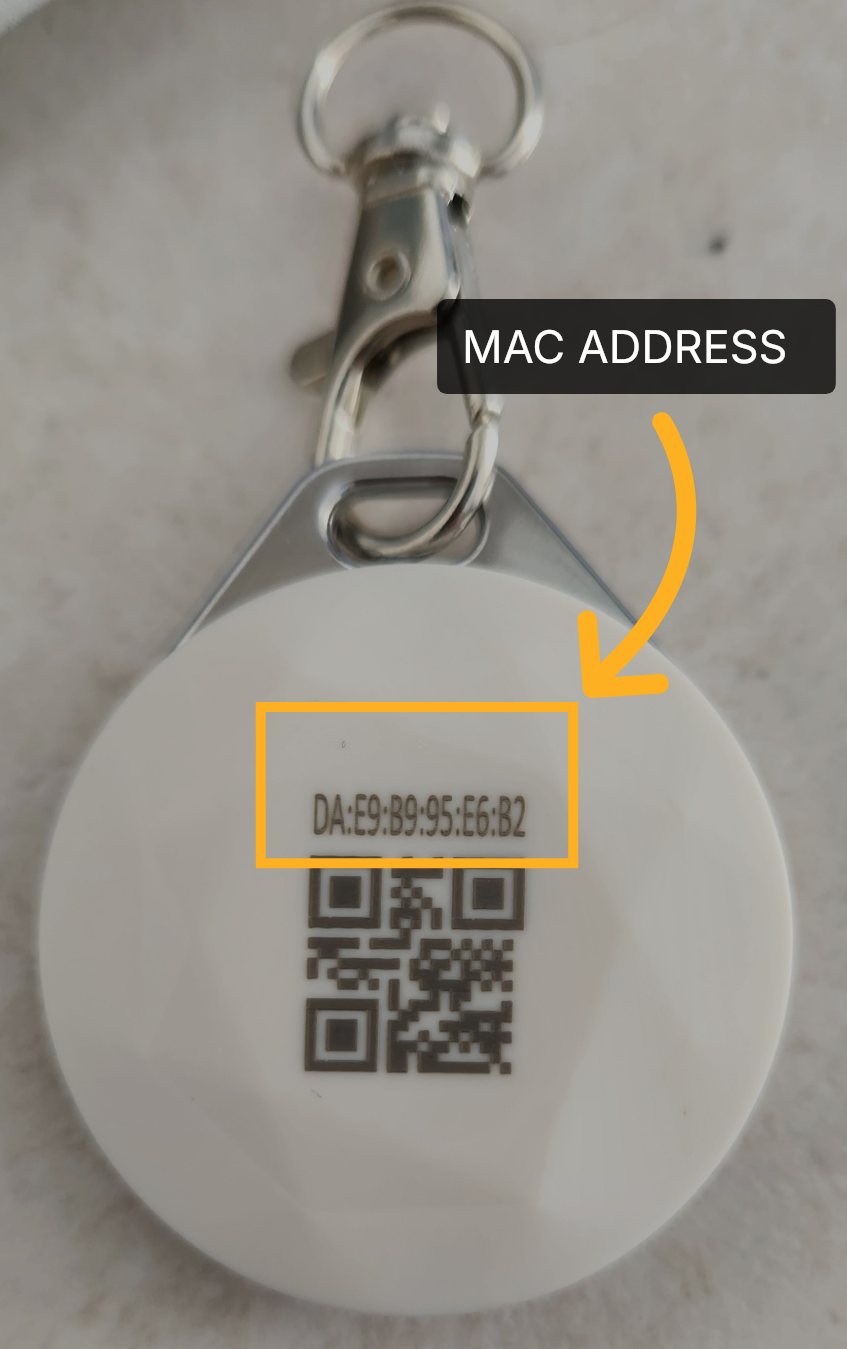
- Enter Model Number
Enter the model number. This will remain the same across all devices.
- Assign BLE Device to Employee
Then press “Assign BLE Device +”. Select the employee you would like to assign it to.
- Set Validity Dates Instructions
Under “Valid From” select the current date. Do not put anything under “Valid To”.

- Save And Confirm Assignment
Press the “Save” button in the bottom left corner next to the back arrow. You have now successfully assigned a BLE device to an employee.